How to fix Elementor 500 Server Error?
Learn how to fix Elementor 500 Internal Server Error in WordPress. Step-by-step solutions including PHP memory limit, plugin conflicts, .htaccess fix, and server troubleshooting.

Akash Perera
If you’re facing a 500 Internal Server Error in Elementor, don’t worry guys this is a common issue many WordPress users experience. This error usually indicates a problem on the server side, but the good news is that it can be fixed with a few simple.

What is Elementor 500 Server Error?
A 500 Internal Server Error means something went wrong on your website server, preventing Elementor from loading or saving changes.
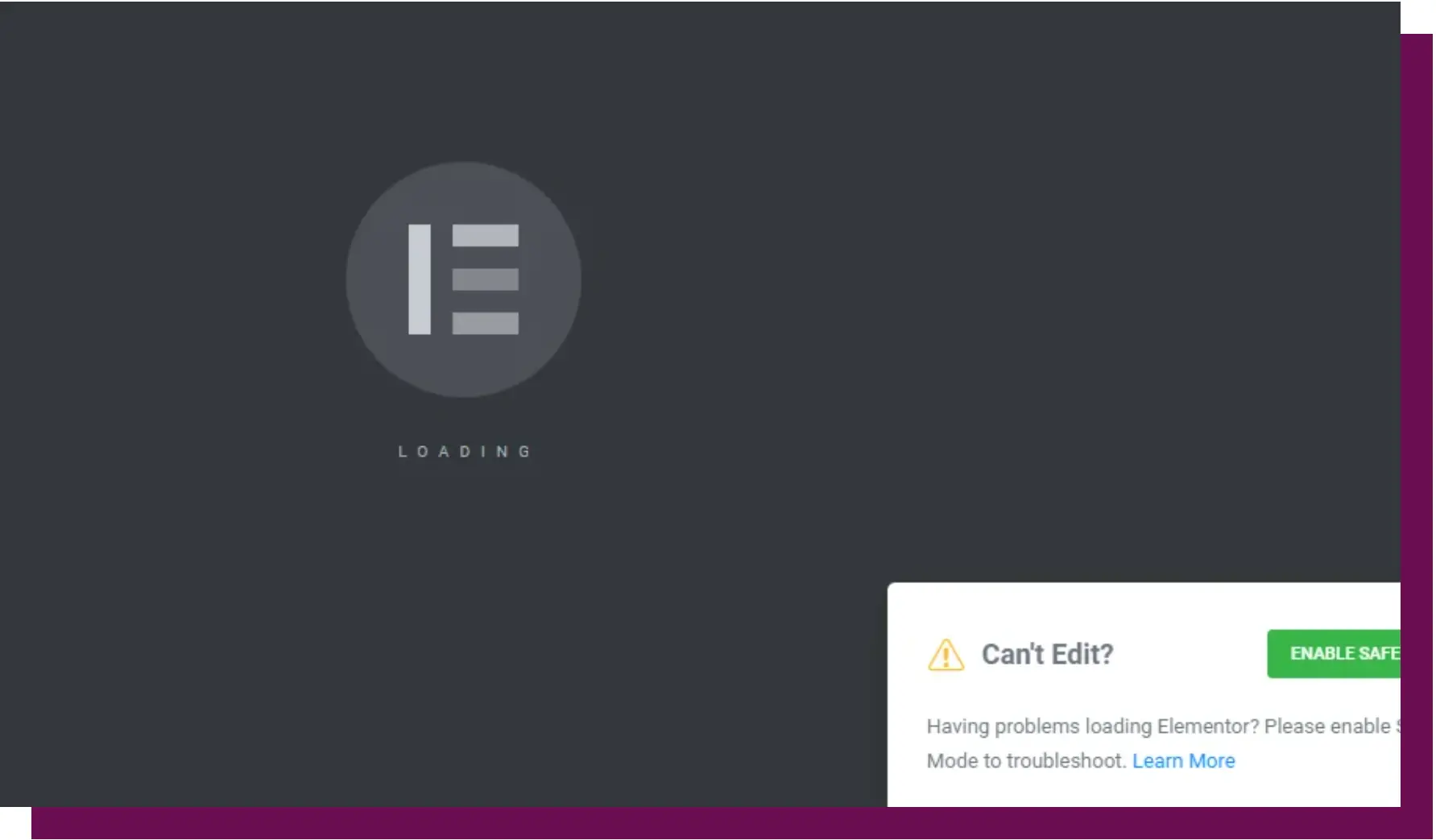
Common signs :
Elementor not loading
The Elementor editor not loading is a common issue faced by WordPress users, often appearing as a blank screen, infinite loading spinner, or a stuck loading page. This problem is usually caused by factors such as low PHP memory limits, plugin conflicts, outdated themes, or server-side errors. In many cases, the editor fails to load because your website does not have enough resources to run Elementor properly.
To fix this issue, you can start by increasing the PHP memory limit, disabling conflicting plugins, and ensuring your WordPress theme and Elementor plugin are up to date. Additionally, clearing your browser cache and checking your hosting server settings can help resolve the problem. By identifying the root cause and applying the correct solution, you can quickly restore the Elementor editor and continue building your website without interruptions.
“Internal Server Error” message
The Internal Server Error (500) is one of the most common issues in WordPress and Elementor, indicating that something has gone wrong on the web server but the exact cause is not clearly defined. This error typically occurs due to server misconfiguration, corrupted .htaccess files, insufficient PHP memory limits, or conflicts between plugins and themes. When this error appears, your website may become inaccessible or fail to load properly, affecting both user experience and SEO performance.
To fix the 500 internal server error, you should start by regenerating the .htaccess file, increasing the PHP memory limit, disabling recently added plugins, and ensuring your hosting environment meets the required PHP version. In some cases, contacting your hosting provider to check server logs can help identify the root cause. By applying these troubleshooting steps, you can effectively resolve the issue and restore your website functionality.
Page stuck on loading
The page stuck on loading issue is a frustrating problem commonly experienced by WordPress and Elementor users, where the page continuously shows a loading spinner without fully rendering the content. This issue is often caused by JavaScript errors, plugin conflicts, insufficient server resources, or slow hosting performance. In many cases, the problem occurs when scripts fail to load properly or when there is a conflict between Elementor and other plugins installed on your website.
To fix the page stuck on loading issue, you should start by clearing your browser cache, disabling unnecessary plugins, and checking for JavaScript errors using browser developer tools. Additionally, increasing your PHP memory limit and ensuring your website is running on a reliable hosting environment can significantly improve performance. By identifying and resolving these underlying issues, you can restore normal page loading and enhance your website’s user experience and SEO performance.
Common Causes of Elementor 500 Error
Low PHP memory limit
Plugin conflicts
Theme issues
Corrupted
.htaccessfileServer misconfiguration
Outdated PHP version
How to Fix Elementor 500 Server Error (Step-by-Step)
1. Increase PHP Memory Limit
Elementor needs more memory to run smoothly. Therefore need change some settings in wp-config.php
Login to your hosting (cPanel / hPanel / DirectAdmin)
Open File Manager
Go to public_html/
Find file: wp-config.php
Right-click → Edit
Find this line:
/* That's all, stop editing! Happy publishing. */Add ABOVE it & click save:
define('WP_MEMORY_LIMIT', '256M');2. Disable All Plugins (Check Conflicts)
A. Go to WordPress Dashboard
B. Navigate: Plugins → Installed Plugins
C. Select all plugins (checkbox top)
D. Choose Deactivate → Apply
E. Then, Activate Elementor only
F. Check if error is gone
G. If fixed → enable plugins one by one to find the problem plugin
3. Switch to Default Theme
A. Go to: Appearance → Themes
B. Activate: Hello Elementor OR TwentyTwenty-Four
If error disappears → your theme is the issue
4. Regenerate .htaccess File
Method 01:
Go to Settings → Permalinks and Click Save Changes.
Done !!! (WordPress auto regenerates)
Method 02:
Go to File Manager → public_html and Find:
.htaccessDelete it
Go back to Permalinks → Save
5. Enable Debug Mode (Find Exact Error)
Open wp-config.php again
Add:
define('WP_DEBUG', true);define('WP_DEBUG_LOG', true);define('WP_DEBUG_DISPLAY', true);After thease changes,
Errors will show on screen
Logs saved in -> /wp-content/debug.log
VERY useful to identify real issue
6. Update PHP Version
Login to hosting (cPanel)
Find, Select PHP Version OR PHP Manager
Choose latest available PHP version
Click Apply
Important:
Backup before changing
Some old plugins may break
7. Contact Hosting Support
If NOTHING works call to support and tell like below
“I’m getting a 500 Internal Server Error in WordPress Elementor. Can you check server error logs, PHP memory limits, and configuration issues?”
and ask them to Increase memory , Check logs or Fix server misconfigurations
By following these step-by-step solutions, you can easily fix Elementor 500 server errors and other common WordPress issues. Proper debugging, plugin management, and server optimization play a key role in maintaining a fast and error-free website.
FAQ
What is Elementor 500 Internal Server Error?
Elementor 500 Internal Server Error is a server-side issue that prevents the Elementor editor from loading or saving changes. It usually happens due to server misconfiguration, low PHP memory, or plugin conflicts.
Why is Elementor not loading?
Elementor may not load due to low PHP memory limits, plugin conflicts, outdated themes, or server issues. Increasing memory and disabling conflicting plugins usually fixes the problem.
How do I fix Elementor 500 error?
You can fix it by increasing PHP memory, disabling plugins, switching themes, regenerating the .htaccess file, enabling debug mode, and updating your PHP version.
Does PHP memory limit affect Elementor?
Yes, Elementor requires sufficient PHP memory. Low memory limits can cause loading issues and 500 errors. Increasing it to at least 256MB is recommended.
Can plugins cause Elementor errors?
Yes, conflicting or poorly coded plugins can break Elementor functionality and cause server errors. Always test by disabling plugins one by one.
Will changing the theme fix Elementor errors?
Sometimes yes. If your theme is not compatible or has issues, switching to a default theme like Hello Elementor can resolve the error.
What should I do if nothing works?
If all fixes fail, contact your hosting provider and ask them to check server logs, increase PHP memory, and fix server configuration issues.